

Your first snippet
Create a small snippet, save it, and activate it when you are ready.
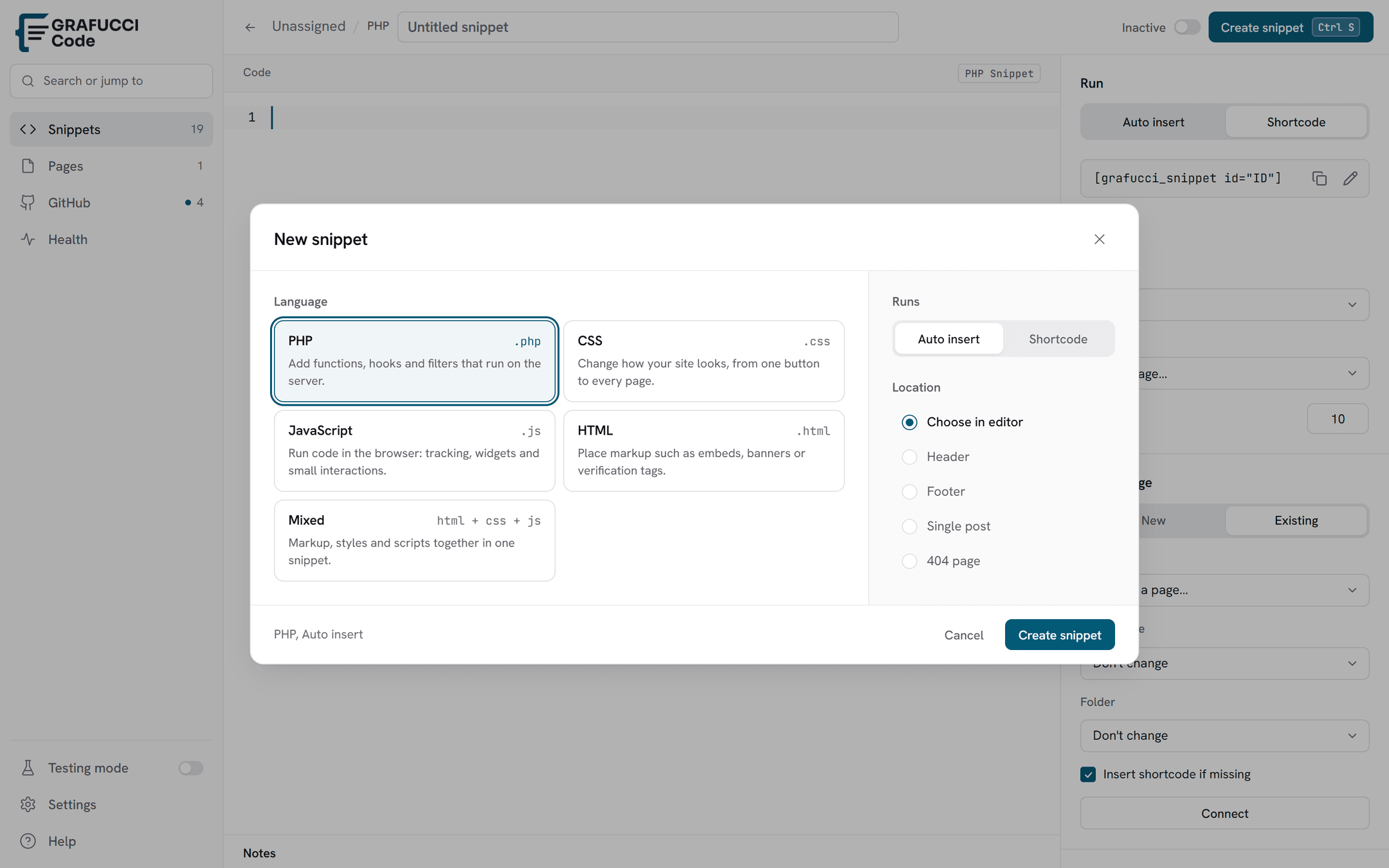
- Click Add snippet
From Snippets, open the new-snippet dialog.
- Choose a code type
Pick PHP, CSS, JavaScript, HTML, or Mixed.
- Choose execution
Auto insert loads the snippet on the site. Shortcode runs only where you paste the tag.
- Choose where it runs
For Auto insert, pick header, footer, admin, or another location. Shortcode skips that step.
- Write your code
Paste or write code in the editor. Syntax highlighting follows the selected type.
- Save
Saving creates a version snapshot you can restore later.
- Activate
Toggle Active when the snippet is ready to run according to its location rules.
Tip
- Start with CSS or HTML on a staging site before enabling PHP.