
Connect Cursor
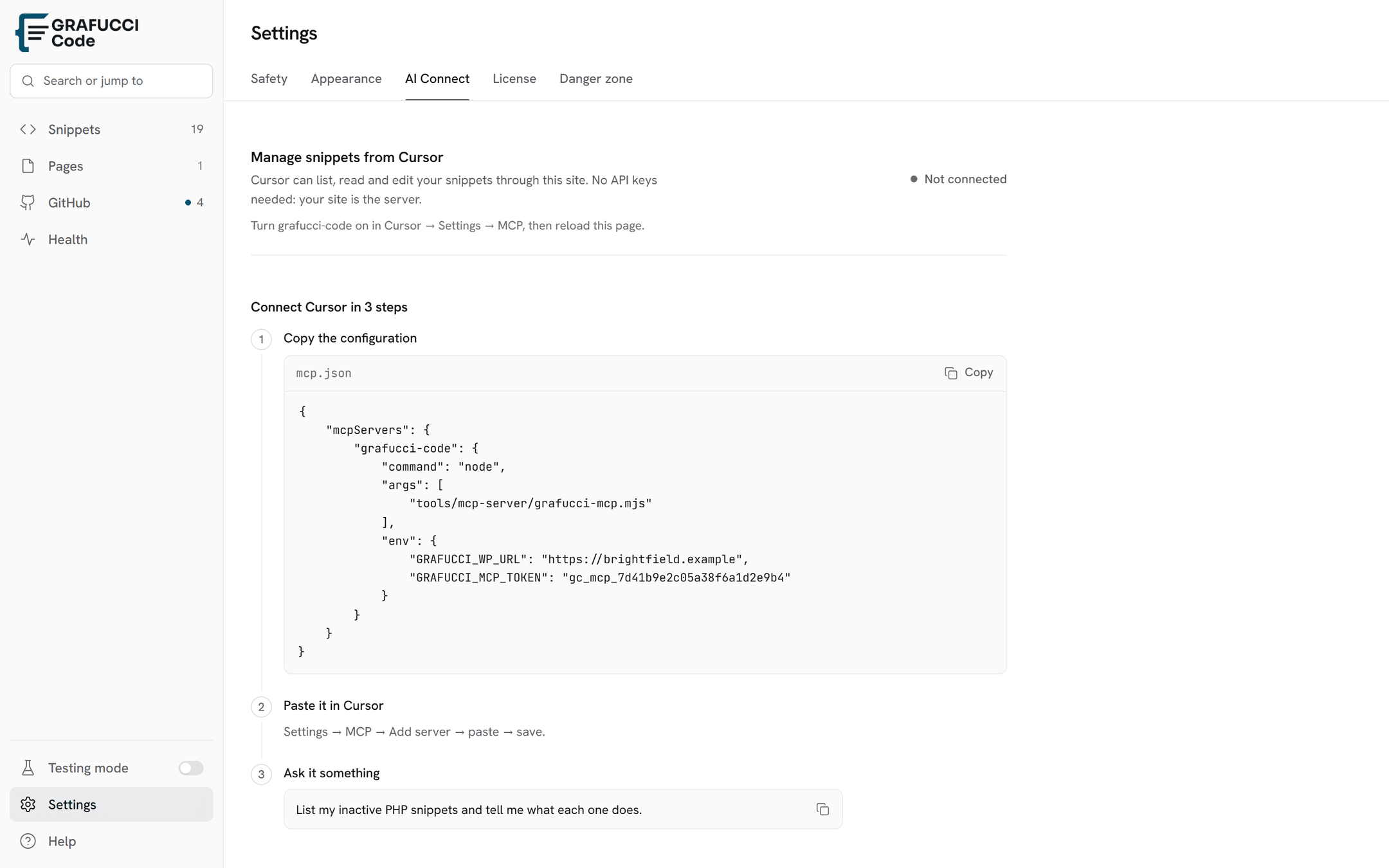
AI Connect lets Cursor read and edit snippets on your site. The bridge runs on your computer and talks to WordPress. No extra API key.
Connect
- Turn the bridge on
In wp-admin open Grafucci Code → Settings → AI Connect. The switch should say On. If it says Off, Cursor cannot save snippets.
- Point Cursor at the script
The copied JSON uses a short path,
tools/mcp-server/grafucci-mcp.mjs. That path only works when the open Cursor project contains that file. If you opened a website project, replace it with the full path tografucci-mcp.mjson your computer, then reload the server in Cursor → Settings → MCP. - Wait for the green dot
A green dot means Cursor can see the tools. Do not paste the JSON from the site again after you have fixed the path. Pasting replaces the full path with the short one and the connection closes.
Cloudflare
If the site uses Cloudflare Bot Fight or a managed challenge, Cursor never reaches WordPress. The browser can open the site. The script cannot. The log shows HTTP 403 and a “Just a moment…” page.
In the Cloudflare dashboard for that domain, add a WAF custom rule:
- When: URI Path starts with
/wp-json/grafucci-code/ - Then: Skip — Managed Challenge, and Bot Fight Mode if it is on
Save the rule, then reload the MCP server in Cursor. Leave the rest of the site challenged. Only the Grafucci Code API needs to be open for the bridge.
SSH is a different kind of login. It opens files on the host. Snippets live in the WordPress database, so SSH does not replace AI Connect.
The switch
AI Connect → the On/Off switch saves the bridge state. Off tells Cursor to disconnect. On lets it connect again. On plugin versions before 1.5.4 the switch could show “The link you followed has expired” and stay On. Update the plugin, then try the switch again.
What Cursor can do
- List folders and snippets
- Read and save snippet code
- Create folders
- Activate, deactivate, or trash a snippet
- Check PHP before saving
Sending those edits to GitHub is separate. Use Pull & push.